After devising a high-level design for my idea, I needed to take care of more mundane things, starting with setting up the development environment. First, I had to find out if using a Commodore 64 emulator for testing and development was an option. I wanted to rely on the emulator as much as possible to speed up the development time. The main two concerns I had were:
would the emulator even support external devices?
if, the above was true and my idea worked on the emulator, would it work on real hardware
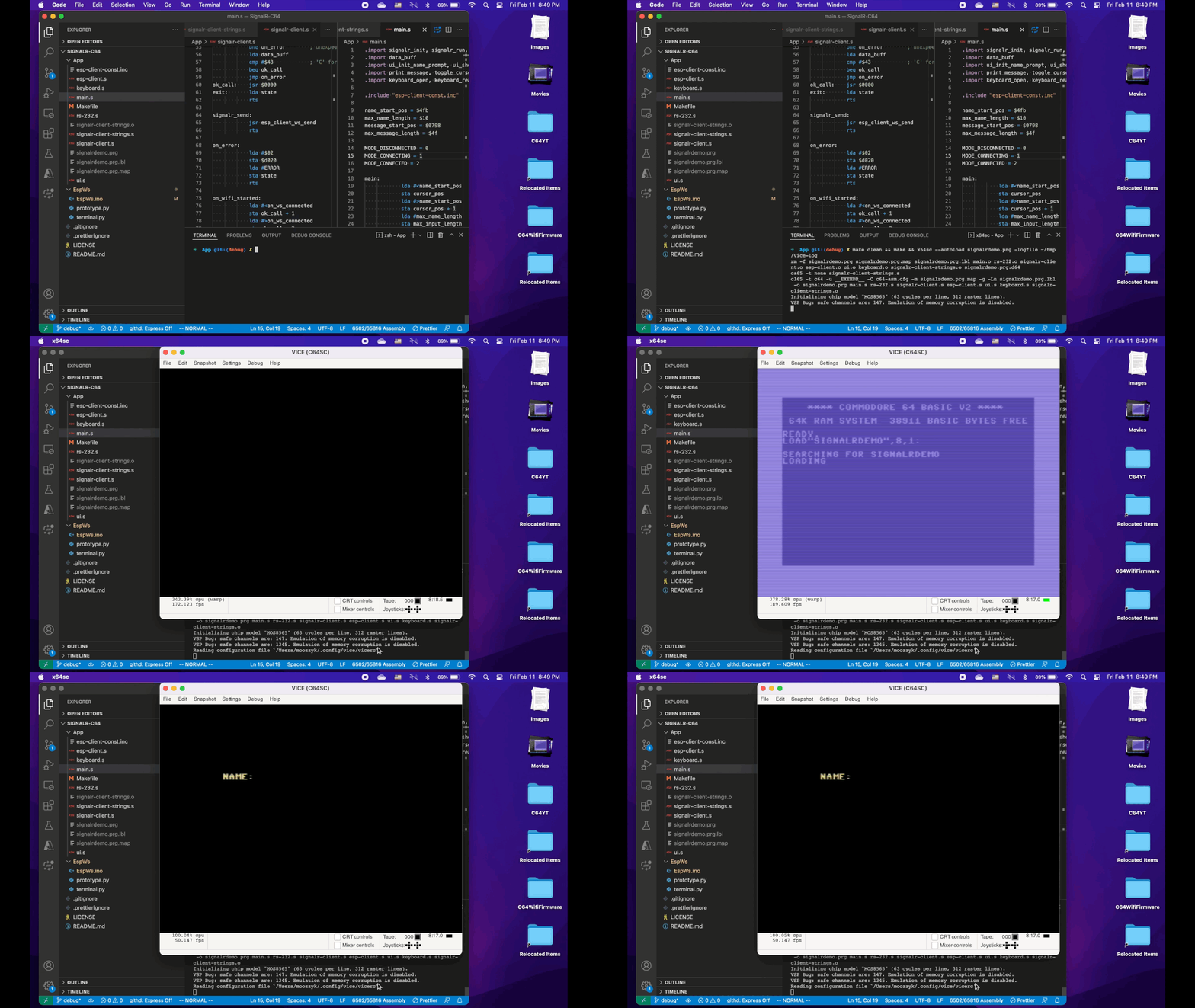
Vice-64 was the most advanced and mature Commodore 64 emulator I knew of. I used it previously in some of my projects (e.g. Vintage Studio) and to occasionally play some of my favorite games but never with any external hardware. Looking at Settings gave me hope – I found that there were at least controls allowing to configure serial communication. After playing with the settings for a bit I was able to make Nova Term connect to a BBS via the C64-WIFI modem connected to my laptop via USB. This answered my first concern and assured that I would be able to code and test the entire solution on my laptop with maybe some additional debugging on the real C-64 at the very end. Another benefit of using Vice was access to the built-in debugging tools. They allow setting breakpoints and stepping through the code and the support for labels makes debugging much easier.
Next, I had to decide on which 6502 assembler to use. I found ca65 (a part of cc65 suite https://github.com/cc65) to be the best option. It has a lot of great features, has been around for a long time and has a lot of documentation as well as source code available on github. I was almost sure that VS Code was the safest bet to serve as my 6502 assembly editor as it has a ton of extensions. The main thing I was looking for was syntax highlighting and I quickly found the CA65 extension which did exactly what I was after. The extension also provides build tasks but I have not used them as I decided to go with make. Overall, the combination of Vice, VS Code, ca65 and make ended up making quite a productive environment where I could quickly build, launch and debug my project.
To handle the NodeMCU part I decided to stick to Arduino Studio. I knew that VSCode had an Arduino extension (heck, I even created one long time ago before Microsoft decided to occupy this space) but it tried to reformat my code the way I did not like and I didn’t want to spend the time on adjusting it to my liking. I also think I had some issues with uploading my sketch to the board while everything worked fine from Arduino Studio.
At the beginning I was able to test my NodeMCU code using screen. It was possible because the protocol I implemented was text based. Later, I switched to a fully binary protocol and using any general purpose solution was not an option, so I created a simple terminal in Python that was able to interpret and translate my commands and the responses from the module.
I used a standalone NodeMCU module for most development but occasionally tested my code against the C-64 WiFi’s NodeMCU module. Surprisingly, I found some slight differences between how the boards behaved immediately after booting and had to implement a simple workaround which ignored first few bytes received from the module.
For the SignalR part I just took the chat server I created for my other project. I ran it locally during the implementation and then deployed to Microsoft Azure for final testing and demo.
The final missing piece of my environment was actual hardware. I had a Commodore 64 that I know was working the last time I turned it on because it was when I fixed it. I also had a 1084S-D2 monitor which stopped working when I was testing my C-64. Fortunately, it turned out to be only the power switch. Replacing the switch brought the monitor back to life. I decided to go fully retro and had to acquire a 1541 disk drive – luckily I found a working one in decent condition on craigslist. I received a bunch of disks used with Commodore 64 from a colleague many years ago. Despite all these years in a closet almost all of them worked just fine. The only thing remaining was to transfer the compiled program to a disk which I did using a SD2IEC module.
Looking back I am really amazed how many technologies – both hardware and software – were involved in putting my solution together. Four programming languages, vintage and modern hardware, embedded programing, Cloud technologies and a variety of, mostly open source, tools. All this made this project a lot of fun. Next time we will take a closer look at the implementation.
This is the first post in a series that talks about my recent project dubbed “Cloud enabled Commodore 64”. The project is an attempt to connect Commodore 64 to Cloud (Azure) and let it communicate with a variety of clients – both modern and vintage. Here is a demo of the final result:
I had the idea of connecting Commodore 64 to Cloud in my head for a really long time. When I initially tried to take a stab at it, it was apparent that I didn’t have skills necessary to build the hardware. When the C64 WiFi modem came out I have already moved on and did not pay attention. Until that one, dark autumn Friday night, when I was browsing ebay and came across a C64 WiFi modem which I promptly bought. To be honest I did not even spend too much time looking at the pictures and when it arrived, I was very surprised to notice that the modem is just a NodeMCU Esp8266 board that can be plugged in to the C64 User port. This was a very pleasant surprise because I was already familiar with NodeMCU – I used it for one of the first ASP.Net Core SignalR demos.
The main purpose of the original C64 WiFi modem and its firmware was to allow Commodore 64 owners access BBS’es around the world with software called Nova Term. This did does not appeal to me at all. Due to the times and place I grew up in I did not even have access to a landline and the only way to get new software was via swapping with other enthusiast either at school or over mail. I did spend a night playing with the modem and figured one can use this modem to connect to a BBS directly from a Mac or Linux using screen (or a PC using Putty). This convinced me that the modem works and that my idea suddenly became real.
How? – High level design
The modem pretty much dictated the design. The communication between C64 and the modem would use Serial protocol and the modem would require a firmware that would deal with all network related affairs.
Cloud enabled Commodore 64 design
I decided on a few principles upfront:
Modem firmware will only deal with network (i.e. will not include client specific logic)
C64 software will be written in 6502 assembly
C64 software will use built-in Serial routines (KERNAL)
I will use Azure as the cloud provider and will use SignalR
I decided to use 6502 assembly to remember the fun I had using it on my first computer when I was a kid. Right decision or not, it made me appreciate how much progress have been made with regards to programming since then.
The KERNAL routines for Serial protocol are infamous for their bugs but they work OK at low speeds. There are several routines that patch and fix KERNAL code responsible for serial communication and allow reliable transfers at 2400 or even 9600 bauds. After I started investigating, I quickly realized that researching this subject would be interesting but also very time consuming. While it would be nice to have faster serial communication, running at 1200 bauds felt to be fast enough for this project – let’s be honest, in today’s world 9600 bauds is as fast (or as slow) as 1200 bauds and I never thought this project could have any practical usages.
Finally, I decided to go with Azure simply because I am much more familiar with Azure than AWS or Google Cloud. I am also quite familiar with SignalR and how it allows building engaging demos with the canonical example of a chat app being something that might even seem a legit use case for a 40-year-old computer.
These were my thoughts before I embarked on this project. I will however revisit some of these decision in a future post where I will reflect on surprises I encountered and what I could have done differently.
Why?
As noted before – this project was never supposed to have any practical usages. I just thought it would be a fun hobby project. And it really was. Seeing it working live on a real hardware was a blast.
That’s it for today. Next time I will go over the environment I used to develop this.
Check out my Swift SignalR Client Course which contains the most complete and up-to-date information about using the Swift SignalR Client.
As of version 0.7.0 the Swift SignalR Client supports automatic reconnection. This means that, if configured, the client will try to re-establish the connection to the server if the connection was lost. This post explains how this feature works, how to enable it and what configuration options are available.
Automatic reconnects
There are many scenarios where restoring an interrupted connection automatically is important. For instance, mobile applications very often have to be able to deal with unstable network and it’s crucial for these apps to be resilient to network issues. Conceptually the solution to the problem is simple – when the connection is lost a new connection needs to be started. In case of the Swift SignalR Client, this could always be implemented by the code consuming the client (i.e. on the application side). It turns out however, that in practice, implementing this logic is quite hard. Given that this is a common request and is the implementation is tricky it made sense to add support for automatic reconnection to the client. An important thing to note however is that the client does not offer anything more than just restoring the connection. In other words, the client will make a few attempts to restart the connection if it was stopped due to an error but will not do anything more than that. If reconnecting succeeds the server will treat the connection as a completely new connection and will assign it a new connection id. The client will also not receive messages it might have missed when it was disconnected. Anyone who used the non-Core version of SignalR can notice that this a big change to how reconnection worked in the non-Core version where, upon reconnecting, the server would recognize that the client has reconnected and resend missed messages. This functionality can no longer be implemented in the client for the Core version of SignalR because it requires cooperation from the server side (e.g. the server needs to buffer messages) and that logic does not exist in the Core version of SignalR.
Automatic reconnection is disabled by default. The main reason for this is backward compatibility – existing applications did not expect the connection to try to reconnect automatically so, they could break if the feature was enabled by default. Automatic reconnection requires also a bit of additional work and handle new lifecycle events.
Basics
The easiest way to enable automatic reconnection is to use the new .withAutoReconnect() method available on the HubConnectionBuilder class.
When automatic reconnection is enabled the application may receive two additional events:
connectionWillReconnect – invoked when the connection was lost
connectionDidReconnect – invoked when the connection was successfully restored
By default, the client will make up to four attempts to restore the connection. The first attempt will be made immediately after the connection was lost. The next three attempts will take place respectively 2, 10 and 30 seconds after the previous unsuccessful attempt. If all four attempts are unsuccessful the client will give up, close the connection and invoke the connectionDidClose event.
When the connection is being restored the client will not allow to invoke any method that tries to send data to the server.
Connection is now restartable
Adding support for automatic reconnection made the connection restartable. Before, once the connection was stopped it was necessary to create a new instance to be able to connect to the server again. This is no longer the case – the same instance can be used to restart connection to the server after it was stopped. This could be especially useful when handling background/foreground transitions.
Advanced Scenarios
The default reconnect configuration can be customized. It is possible to change the number of attempts as well as the time intervals between the attempts. The easiest way to do this is to create a new instance of the DefaultReconnectPolicy class with an array of retry intervals and pass this policy to the .withAutoReconnect() method. The number of retry intervals in the array tells the client how many reconnect attempts it should make, while the interval values indicate the time to wait between the attempts.
If the default reconnect policy is not flexible enough it is possible to go even further and create a custom reconnect policy by creating a class that conforms to the ReconnectPolicy protocol. This protocol has just one method – nextAttemptInterval that takes a RetryContext and returns the time interval telling the client when the next reconnect attempt should happen. The RetryContext instance passed to the nextAttempInterval method contains information about the current reconnect – the time when the reconnect was initiated, the number of failed attempts so far and the original error that triggered the reconnect. To stop further reconnect attempts the nextAttempInterval method should return DispatchTimeInterval.never. To put the policy to work the policy needs to be passed to the .withAutoReconnect() method when configuring the connection.
Backward Compatibility (a.k.a. Kill Switch)
As noted above, writing reconnect logic turned out to be quite tricky. It also required modifying existing code that is executed even when automatic reconnects are disabled. This created a risk of introducing issues into existing scenarios. In case of running into a bug like this it is possible to go back to the previous behavior by using the .withLegacyHttpConnection() method on the HubConnectionBuilder when creating a new hub connection.
Conclusion
These are pretty much all the details needed to be able to use automatic reconnection in the Swift SignalR Client. My hope is that automatic reconnection will make lives of developers much easier.
Check out my Swift SignalR Client Course which contains the most complete and up-to-date information about using the Swift SignalR Client.
In the previous post we looked at some basic usage of the Swift SignalR Client. This was enough to get started but far from enough for any real-world application. In this post we will look at features offered by the client that allow handling more advanced scenarios.
Lifecycle hooks
One very important detail we glossed over in the previous post was related to starting the connection. While starting the connection seems to be as simple as invoking:
This file contains hidden or bidirectional Unicode text that may be interpreted or compiled differently than what appears below. To review, open the file in an editor that reveals hidden Unicode characters.
Learn more about bidirectional Unicode characters
it is not really the case. If you run the playground sample in one go you will see a lot of errors similar to:
2019-07-29T16:05:00.987Z error: Attempting to send data before connection has been started.
What’s going on here? The start() method is a not blocking call and establishing a connection to the server requires sending some HTTP requests, so takes much more time than just running code locally. As a result, the playground code continues to run and try to invoke hub methods while the client is still working in the background on setting up the connection. Another problem is that there is actually no guarantee that the connection will be ever successfully started (e.g. the provided URL can be incorrect, the network can be down, the server might be not responding etc.) but the start() method never returns whether the operation completed succcessfully. The solution to these problems is the HubConnectionDelegate protocol. It contains a few callbacks that allow the code that consumes the client be notified about the connection lifecycle events. The HubConnectionDelegate protocol looks like this:
This file contains hidden or bidirectional Unicode text that may be interpreted or compiled differently than what appears below. To review, open the file in an editor that reveals hidden Unicode characters.
Learn more about bidirectional Unicode characters
The names of the callbacks should make their purpose quite clear but let’s go over them briefly:
connectionDidOpen(hubConnection: HubConnection) – raised when the connection was started successfully. Once this event happens it is safe to invoke hub methods. The hubConnection passed to the callback is the newly started connection
connectionDidFailToOpen(error: Error) – raised when the connection could not be started successfully. The error contains the reason of the failure
connectionDidClose(error: Error?) – raised when the connection was closed. If the connection was closed due to an error the error argument will contain the reason of the failure. If the connection was closed gracefully (due to calling the stop() method) the error will be nil. Once the connection is closed trying invoking a hub method will result in an error
To set up your code to be notified about hub connection lifecycle events you need to create a class that conforms to the HubConnectionDelegate protocol and use the HubConnectionBuilder.withHubConnectionDelegate() method to register it. One important detail is that the client uses a weak reference to the delegate to prevent retain cycles. This puts the burden of maintaining the reference to the delegate on the user. If the reference is not maintained correctly the delegate might be released prematurely resulting in missing event notifications. The example chat application shows the usage of the lifecycle events. It blocks/unblocks the UI based on the events raised by hub connection to prevent the user from sending messages when there is no connection to the server. The HubConnectionDelegate derived instance is stored in a class variable to ensure that the delegate will not be released before the connection is stopped.
HubConnectionBuilder
The HubConnectionBuilder is a helper class that contains a number of methods for configuring the connection:
withLogging – allows configuring logging. By default no logging will be configured and no logs will be written. There are three overloads of the withLogging method. The simplest overload takes just the minimum log level which can be one of:
.debug (= 4)
.info (= 3)
.warning (= 2)
.error (= 1)
When the client is configured with this overload all log entries at the configured or higher log level will be written using the print function. The user can create more advanced loggers (e.g. a file logger) by creating a class conforming to the Logger protocol and registering it with one of the other withLogging overloads
withHubConnectionDelegate – configures a delegate that allows receiving connection lifecycle events (described above)
withHubProtocol – used to set the hub protocol that the client will use to communicate with the server. Not very useful at the moment given that currently the only supported hub protocol is the Json hub protocol which is also used by default (i.e. no additional configuration is required to use this protocol)
HttpConnectionOptions
The HttpConnectionOptions class contains lower level configuration options set using the HubConnectionBuilder.withHubConnectionOptions method. It allows configuring the following options:
accessTokenProvider – used to set a token provider factory. Each time the client makes an HTTP request (currently – because the client supports only the webSocket transport – this happens when sending the negotiate request and when opening a webSocket) the client will invoke the provided token factory and set the Authorization HTTP header to: Bearer {token-returned-by-factory}
skipNegotiation – by default the first step the client takes to establish a connection with a SignalR server is sending a negotiate request to get the capabilities of the server (e.g. supported transports), the connection id which identifies the connection on the server side and a redirection URL in case of Azure SignalR Service. However, the webSocket transport does not need a connection id (the connection is persistent) and if the user knows that the server supports the webSocket transport the negotiate request can be skipped saving one HTTP request and thus making starting the connection faster. The default value is false. Note: when connecting to Azure SignalR service this setting must be set to false regardless of the transport used by the client
headers – a dictionary containing HTTP headers that should be included in each HTTP request sent by the client
httpClientFactory – a factory that allow providing an alternative implementation of the HttpClient protocol. Currently used only by tests
Azure SignalR Service
When working with Azure SignalR Service the only requirement is that the HttpConnectionOptions.skipNegotiation is set to false. This is the default setting so typically no special configuration is required to make this scenario work.
Miscellaneous
Limits on the number of arguments
The invoke/send methods have strongly typed overloads that take up to 8 arguments. This should be plenty but in rare cases when this is not enough it is possible to drop to lower level primitives and use functions that operate on arrays of items that conform to the Encodable protocols. These functions work for any number of arguments and can be used as follows:
This file contains hidden or bidirectional Unicode text that may be interpreted or compiled differently than what appears below. To review, open the file in an editor that reveals hidden Unicode characters.
Learn more about bidirectional Unicode characters
The SignalR server does not enforce that the same client method is always invoked with the same number of arguments. On the client side this rare scenario cannot be handled with the strongly typed .on methods. In addition -similarly to the scenarios described above – there is a limit of 8 parameters that the strongly typed .on callbacks support. Both scenarios can be handled by dropping to the lower level primitive which uses an ArgumentExtractor class instead of separate arguments. Here is an example:
This file contains hidden or bidirectional Unicode text that may be interpreted or compiled differently than what appears below. To review, open the file in an editor that reveals hidden Unicode characters.
Learn more about bidirectional Unicode characters
These are pretty much all the knobs and buttons that the Swift SignalR Client currently offers. Knowing them allows using the client in the most effective way.
Check out my Swift SignalR Client Course which contains the most complete and up-to-date information about using the Swift SignalR Client.
SignalR-Client-Swift is a SignalR client for the Core version of SignalR for applications written in Swift. It’s been around for a while and, although the work is still in progress, it is stable and usable enough to use it in real apps. The project is an open source project hosted on GitHub and has received number of contributions from the community (e.g. including big features like support for Swift Package Manager). Unfortunately, so far, the documentation for this client has been between scarce and non-existent making it harder to adopt it. This and the next post aim to fix this problem.
Before looking diving into code let’s talk about the current state of affairs. As I mentioned, the work is far from finished and some features you can find in other clients are not currently supported. The following is the list of major SignalR features that are currently not implemented:
Long Polling and Server Sent Events transports
non-Json based hub protocols (e.g. Message Pack)
restartable connections
KeepAlive messages
Here is the more positive list of major features that are implemented:
webSockets transport
client and server hub method invocations (using Json hub protocol)
streaming methods
support for Azure SignalR Service
authentication with auth tokens
SignalR for ASP.Net Core is not backwards compatible with the previous version of SignalR. Hence, the Swift SignalR client will not work with the non-Core version of SignalR server.
Installation
The first step to use the client in a project is installation. Currently there are three ways to install Swift SignalR Client into your project:
CocoaPods
Add the following lines to your Podfile:
This file contains hidden or bidirectional Unicode text that may be interpreted or compiled differently than what appears below. To review, open the file in an editor that reveals hidden Unicode characters.
Learn more about bidirectional Unicode characters
Pull the code from the GitHub repo and configure SignalR client as an Embedded Framework.
Usage
Once the client has been successfully installed it is ready to use. The usage of the Swift SignalR Client does not differ much from other existing clients – you need to create a hub connection instance that you will use to connect and talk to the server. Note that you need to use the same instance of the client for the entire lifetime of your connection.
The easiest way to create a HubConnection instance is to use the HubConnectionBuilder class which contains a number of methods that allow configuring the connection to be created. For instance, creating a HubConnection instance with logging configured at the debug level would look like this:
This file contains hidden or bidirectional Unicode text that may be interpreted or compiled differently than what appears below. To review, open the file in an editor that reveals hidden Unicode characters.
Learn more about bidirectional Unicode characters
Creating a hub connection does not automatically start the connection. It just creates an instance that will be used to communicate with the server once the connection is started. This pattern makes it possible to register handlers for the client-side methods without risking missing invocations received between starting the connection and registering the handler. Handlers for the client-side methods are registered with the on method as follows:
This file contains hidden or bidirectional Unicode text that may be interpreted or compiled differently than what appears below. To review, open the file in an editor that reveals hidden Unicode characters.
Learn more about bidirectional Unicode characters
It is worth noting that types for the handler parameters must be specified and must be compatible with the types of values sent by the server (e.g. if the server invokes the method with a string the parameter type of the handler cannot be Int). The number of handler parameters should match the number of arguments used to invoke the client-side method from the server side.
After registering handlers it’s time to start the connection. It is as easy* as:
This file contains hidden or bidirectional Unicode text that may be interpreted or compiled differently than what appears below. To review, open the file in an editor that reveals hidden Unicode characters.
Learn more about bidirectional Unicode characters
From this point on, if the connection was started successfully, the handlers for the client-side methods will be invoked whenever the method was invoked on the server. Starting the connection allows also to invoke hub methods on the server side. (Trying to invoke a hub method on a non-started connection results in an error). SignalR supports two kinds of hub methods – regular and streaming. When invoking a regular hub method, the client may choose to be notified when the invocation has completed and receive the result of invocation (if the hub method returned any) or an error in case of an exception. Below are examples of such invocations:
This file contains hidden or bidirectional Unicode text that may be interpreted or compiled differently than what appears below. To review, open the file in an editor that reveals hidden Unicode characters.
Learn more about bidirectional Unicode characters
When invoking a hub method that returns a result providing the type of the result is mandatory and this type has to be compatible with the type of the value returned by the hub method. Also, there is no distinction between local and remote handlers – i.e. the completion handler will be called with an error not only when the method on the server side fails but also when initiating the invocation fails (e.g. when trying to invoke a method when the connection is not running).
Hub methods can also be invoked in a fire-and-forget manner. When invoking a hub method in this fashion the client will not be notified when the invocation has completed and will not receive any further events related to this method – be it a result or an error. The code below shows how to invoke a hub method in a fire-and-forget manner:
This file contains hidden or bidirectional Unicode text that may be interpreted or compiled differently than what appears below. To review, open the file in an editor that reveals hidden Unicode characters.
Learn more about bidirectional Unicode characters
Note, that the send method still takes a callback that allows handling errors but this callback will be called only for local errors – i.e. errors that occurred when sending data to the server.
SignalR streaming hub methods return a (possibly infinite) stream of items. Each time the client receives a new stream item a user provided callback will be invoked with the received value.
When a streaming method completes executing a completion callback will be invoked (except for this bug which I found writing this post). The client method that invokes streaming hub methods returns a stream handle. This handle can be used to cancel the streaming hub method. The following code snippet illustrates how to invoke and cancel a streaming hub method:
This file contains hidden or bidirectional Unicode text that may be interpreted or compiled differently than what appears below. To review, open the file in an editor that reveals hidden Unicode characters.
Learn more about bidirectional Unicode characters
If you no longer want to receive notifications from the server or invoke hub methods you can disconnect from the server with:
This file contains hidden or bidirectional Unicode text that may be interpreted or compiled differently than what appears below. To review, open the file in an editor that reveals hidden Unicode characters.
Learn more about bidirectional Unicode characters
One final note about types of arguments and results. The types of all the values sent to the server must conform to the Encodable protocol. The types for the values returned from the server must conform to the Decodable protocol. The most common types in Swift already conform to the Codable protocol (which means that they conform to both the Encodable and the Decodable protocols) and when creating custom structs/classes it is easy to make them conform to the Codable protocol as long as all the member variables already conform to the Codable protocol.
These are the basics of the SignalR Swift Client. The project repo contains additional resources in form of example applications for macOS and iOS. I also created a Swift playground which contains all code snippets published in this post. In the next post we will look at the connection lifecycle events, available configuration options and more advanced scenarios.
* – it is actually not entirely true but we will return to it in the second post†


 Code, the Universe and Everything...