
Everyone fights to be on the first page of the Google search results. But sometimes it’s not cool. One of the cases when it’s not cool is when you introduce a bug that causes a link to your blog to pop up on the first page of the Google search results. Can it be worse? How about the link to your blog being not only on the first page of the Google search results but also *the only* link on the Google search results. Can it be even worse? How about the only result not only in Google but in Bing as well (Hey http://bingiton.com, it’s a tie: 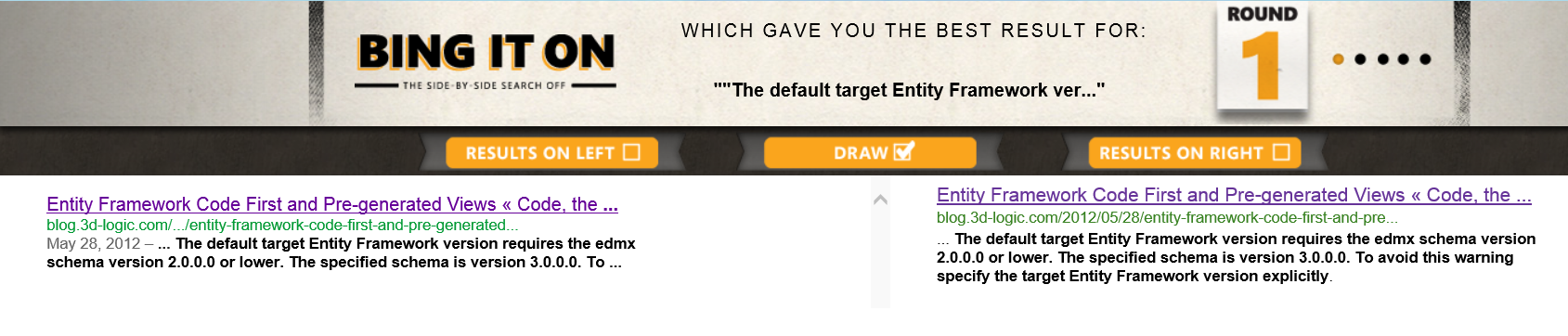 ). Sure, it will add some traffic to your blog but it’s a bad kind of traffic. Desperate people looking for a solution to a problem that seemingly can be solved by only one guy on this planet. Now, I feel unique. Unfortunately in a bad sense. Why? Because a bug that was in T4 templates for generating views for CodeFirst apps made all the above a true story. When the templates were used on Visual Studio 2012 the user would get the an exception saying: “The default target Entity Framework version requires the edmx schema version 2.0.0.0 or lower. The specified schema is version 3.0.0.0. To avoid this warning specify the target Entity Framework version explicitly.” (now Google and Bing should show two results 😉 ). I noticed this the first time when I wanted to show the integration of Visual Studio and Visual Studio Gallery to my sister. Then it was reported by a reader as a comment to the first post on view generation and code first I wrote some time ago. Then I saw it more and more often in search engine terms in the stats of this blog. Today I finally found some time to fix the bug and update the templates to the Visual Studio Gallery. I tested the fix on Visual Studio 2012 (C# and VB.NET projects, both targeting .NET Framework 4.5 and .NET Framework 4) and on Visual Studio 2010 (C# and VB.NET project, targeting .NET Framework 4) and did not get the exception anymore. The new templates have version 1.0.1. If you installed version 1.0.0 you probably need to uninstall the old templates (Tools → Extensions and Updates) and install new ones. I have not tried installing new templates without uninstalling old ones – it may or may not work. If you hit any new problems let me know.
Category: Visual Studio
Entity Framework Code First View Generation Templates On Visual Studio Code Gallery
Some time ago I created T4 templates for creating pre-generated views for Entity Framework Code First applications. I wanted to make them available as soon as possible so I just uploaded them as a zip file to one of my sites and provided a link. This worked as a short-term solution but long-term I wanted something better. Something that would not require manual work. Something that would integrate with Visual Studio seamlessly. Something that is actually called Visual Studio Code Gallery. And it happened yesterday. Yesterday I published the templates on the Visual Studio Code Galery.
Using the templates
First you need to download the templates. You can do it directly from Visual Studio. Right click on your project and select Add -> New Item (Ctrl+Shift+A). In the Add New Item dialog go to “Online templates”:
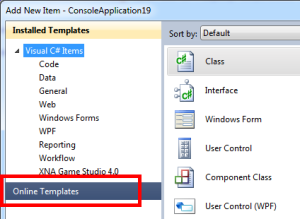
and search for “EF Views”. This should make the “EF CodeFirst View Generation T4 Template for C#/VB” show up (note: only the template for the language of the current project will show up).
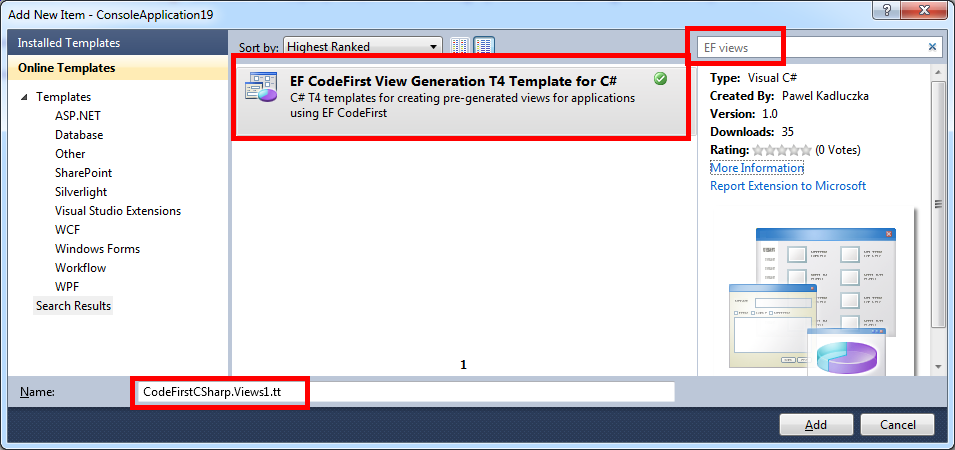
Change the name of the file at the bottom to {Context}.Views.tt where {Context} is the name of the class derived from DbContext you want to create pre-generated views for.
Click “Add” to add the template to your project. Wait for the views to be generated (note: for bigger models view generation may take an extended amount of time).
You can also install templates manually just by downloading vsix files from Visual Studio Code Gallery and pressing “Enter”. Here are direct links to the templates:
- Template for C#: http://visualstudiogallery.msdn.microsoft.com/ae7730ce-ddab-470f-8456-1b313cd2c44d
- Template for VB.Net: http://visualstudiogallery.msdn.microsoft.com/118b44f2-1b91-4de2-a584-7a680418941d
Once you installed the templates you can find them in the “Code” category. Right click on your project and select Add -> New Item (Ctrl+Shift+A). In the “Add New Item” dialog go to the “Code” section:
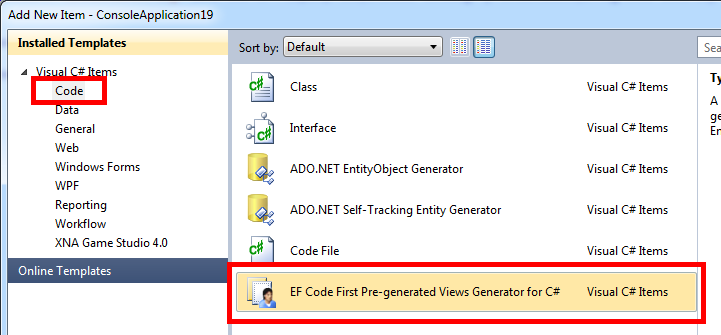
If needed the templates can be uninstalled from Extension Manager (Tools -> Extension Manager):
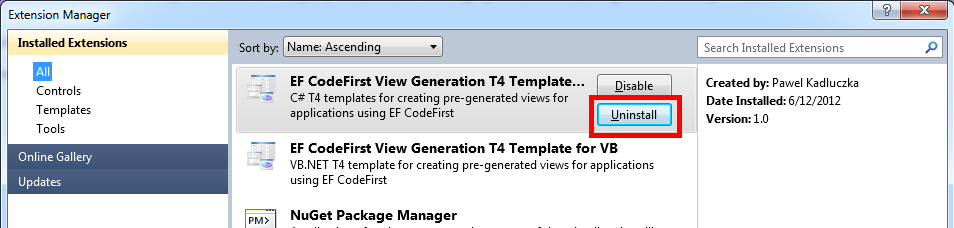
Happy coding.
Pawel Kadluczka
Entity Framework Code First and Pre-generated Views
When working with Entity Framework view generation may take a long time for bigger or complicated models. The workaround for this problem is to use pre-generated views. In case of Database First and Model First approaches you can use T4 templates that will create the pre-generated views (you can find more details here). But what to do when using Code First approach? One possibility is to use Entity Framework Power Tools – just right-click on the file containing your DbContext derived class and select “Optimize Data Model”. Voila – views are created. But what if you need more control, cannot use UI (e.g. you want your build system to create the pre-generated views) or the tool for whatever reason does not work? You can for instance follow this 5 steps:
- Get Edmx file for your model using EdmxWriter.WriteEdmx() method
- Retrieve csdl, msl, ssdl from the edmx file and save them
- From the Visual Studio Command Prompt run EdmGen with mode parameter set to ViewGeneration (i.e. /mode:ViewGeneration)
- Add the generated C#/VB.Net file to your project
- Repeat each time you change your model
Easy? Maybe. Error prone? Probably. Cumbersome? For sure. But now there is a third way. Similarly to the T4 templates for Model and Database First workflows I created T4 templates for creating pre-generated views for Code First approach. Now, you would just add the right (C# or VB.Net) template to your project, rename it so that it contains the name of the context you want to create the views for (e.g. MyContext.Views.tt) and generate your views by right clicking the template and selecting “Run Custom Tool” menu option. Note that creating the pre-generated views with the template will take approximately the same amount of time it takes to create views at runtime – you are just doing the work that would be done at runtime at design time. The templates are (temporarily) available here. I will update this post when they are moved to the final location.The templates are available on the Visual Studio Code Gallery. See this post for more details.
Pawel Kadluczka
Introducing Vintage Studio
Once in a while I get into this nostalgic mood when I want to go back in time and experience again the excitement I had when I got my first computer. It was a Commodore 64. And yes, the nostalgia is about playing M.U.L.E., Rick Dangerous or Kennedy Approach but also (and maybe foremost) about spending time with TurboAssembler trying to open sideborders or figuring out how FLD/FLI/VSP work. Playing retro games is not a problem these days but trying to code is kind of cumbersome. I really loved TurboAssembler and there are features (like numbered bookmarks) I am still missing but the world has moved on. These days we don’t use 5.25” floppies anymore, our processors are a bit faster than 1 MHz, we have access to the Internet at home and instead of using ← 3 to ‘assemble’ we compile with Ctrl+Shift+B or F6 (some people even use a mouse and and an option from the menu). So, I thought it would be nice to combine these two worlds. The release of Visual Studio 2010 helped a lot – the new WPF editor is much easier to extend than before (I started rejecting COM and all its ATL classes in early 2000s) and the MPF project made it possible to code everything in C#. This is how Vintage Studio – a Visual Studio 2010 based IDE for vintage computers – emerged. I created a short video showing the features and how it works (or maybe showing that the workflow – i.e. building, running and debugging – is pretty much the same as you would expect from any VS project). Binaries and source code are available on github. Enjoy!
Pawel Kadluczka
 Code, the Universe and Everything...