Entity Framework 6 Alpha 2 has shipped. It has some new cool features (like custom conventions or automatic discovery of entity configurations) and a few other improvements (like improved queries for Linq Enumerable.Contains or changing the default isolation level when creating a SqlServer new database with CodeFirst). Most of the new features and many improvements are CodeFirst related or CodeFirst only. Still there are people who would prefer using a designer to draw a model and create the database or create a model from an existing database and tweak it. The latest version of the Entity Framework Designer which shipped in VS2012 supports only EF5 so it does not seem like it could handle EF6. However after seeing a question on the Entity Framework team blog a couple days ago I thought it would be interesting to really see if this is the case and what it would take to be able to actually use ModelFirst and DatabaseFirst work flows with EF6. In general I thought it might be possible – artifacts have not changed since EF5. As well as most APIs. The two fundamental changes to EF6 are changes to the provider model and all the “new” types that previously lived in System.Data.Entity.dll. New provider model should not be a big concern here – we care about the results here and not about how they are achieved. So, as long as the designer is able to create the database correctly (model first approach) or the edmx file from the database (database first approach) EF6 runtime should be able to use those. Changes to types seemed more worrisome – not only types themselves changed and have new identities but in many cases namespaces changed as well. Luckily the designer now uses T4 templates to generate the code from the edmx file so it is just a pure textual transformation. I expected that I would need to change the T4 templates a bit to make the code compile with EF6 but it should be easy. After all this mental work-out I decided to try it out. I opened VS 2012, created a new project, added a new ADO.NET Entity Framework model, removed references to System.Data.Entity.dll and EntityFramework.dll (5.0.0.0) and added a reference to the EF6 Alpha2 package using NuGet. Then I created a model from an existing database. The project compiled without errors. I added a few lines of code to bring some entities from the database and everything worked. Adding new entities worked as well. Finally I deleted my model and created a new model to try the Model First approach. Similarly I had to remove references to System.Data.Entity.dll and EntityFramework.dll (5.0.0.0) but other than that everything just worked. While what I did was not a very comprehensive test and using VS2012 for EF6 projects is in general not supported I am pretty confident it will work and should be sufficient until a version of the designer that supports EF6 ships.
(Yes, I am a bit disappointed with how easy it was. I hoped this would be a report from a battlefield where I was able to achieve my goal by using a hack here or adding a few lines of code there and maybe even producing a VSIX as a side effect. On the other hand I am happy that even though the post is a little boring the experience for users is much nicer. This is more important).
Safe Git Clean with MSBuild
I like to clean my source tree once in a while. Unfortunately msbuild {whateverproject}.csproj /t:Clean often falls short – for more complicated solutions with multiple projects some temporary files generated during the build almost always are left on the disk. Removing these should not be a big deal given that the important files are under source control – I can simply remove everything that is not tracked. With git you do that with git clean -xfd command and the files are gone. Usually, this is the (sad) moment when I realize that there was that file you forgot to add to the index or this directory that was not supposed to be added to the index but had some “temporary” data I have been using for a couple of weeks now. To save myself a grief I came up with an MSBuild target that saves everything that is going to be deleted to a backup directory before the clean up. This way even if I missed something not everything is lost – I can go to the backup directory and restore the file.
The target itself turned out quite simple. The biggest problem was to make git commands work with MSBuild. It’s possible to run git commands with Exec task. However Exec task does not capture results of the command. The only way I found to capture the results was to redirect the command output to a file and then read the file contents to an ItemGroup with ReadLinesFromFile task. Not ideal for sure but seems to work.
Using the target is easy as the target takes only two optional parameters – BackupDir and DeleteBackupDir. BackupDir is the path to a directory where files that are not tracked should be saved. If the value is not provided files will be saved to a subfolder of the %TEMP% folder. DeleteBackupDir tells whether to delete the BackupDir if one exists – ‘false’ is the default value. An exemplary command would be:
MSBuild {projectfile} /t:SafeGitClean /p:BackupDir=C:\temp\backup /p:DeleteBackupDir=false
The target itself looks as follows:
<?xml version="1.0" encoding="utf-8"?>
<Project ToolsVersion="4.0" xmlns="http://schemas.microsoft.com/developer/msbuild/2003">
<Target Name="SafeGitClean">
<PropertyGroup>
<BackupDir Condition="'$(BackupDir)' == ''" >$(Temp)\SafeGitClean$([System.Guid]::NewGuid())</BackupDir>
<DeleteBackupDir Condition="'$(DeleteBackupDir)' == ''">false</DeleteBackupDir>
<TempFile>$(Temp)\SafeGitClean_UntrackedFiles$([System.Guid]::NewGuid())</TempFile>
</PropertyGroup>
<Message Text="$(BackupDir)" />
<RemoveDir
Condition="'$(DeleteBackupDir)' == 'true' And Exists('$(BackupDir)')"
Directories="$(BackupDir)" />
<Exec Command="git ls-files --other > $(TempFile)" />
<ReadLinesFromFile File="$(TempFile)">
<Output TaskParameter="Lines" ItemName="UntrackedFile" />
</ReadLinesFromFile>
<ItemGroup>
<UntrackedFileFixed Include="@(UntrackedFile->Replace('/', '\'))" />
</ItemGroup>
<Delete Files="$(TempFile)" TreatErrorsAsWarnings="true" />
<Copy
SourceFiles="@(UntrackedFileFixed)"
DestinationFiles="@(UntrackedFileFixed->'$(BackupDir)\%(Identity)')"
OverwriteReadOnlyFiles="true" />
<Exec Command="git clean -xfd" />
</Target>
</Project>
You can also find it in my github repo: https://github.com/moozzyk/MSBuild-Tasks
Pawel Kadluczka
Entity Framework 6 and pre-generated views
(If you are interested in pre-generated views in EF6 take also a look at this .)
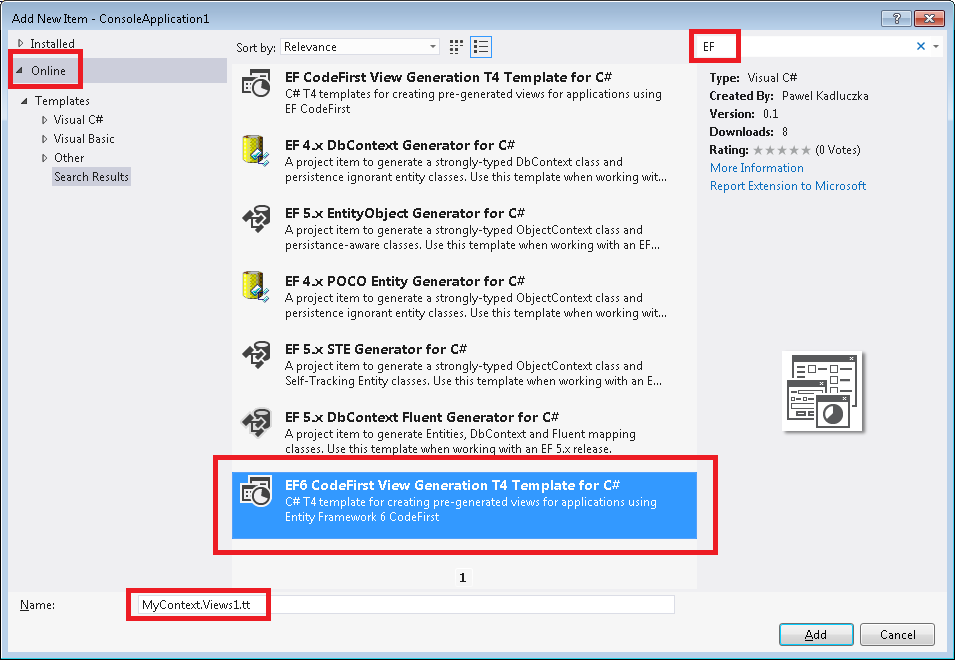
Entity Framework 6 is here. Even though it is in a very early stage it already looks exciting – a lot of improvements in Migrations (multi-tenant migrations, migrations history table customizations), Async, DI for resolving dependencies, code based configuration. Most of it (including features shipped in EF5 – e.g. enums) is running on both .NET Framework 4 and .NET Framework 4.5. In addition trying all of this is as simple as 1, 2, 3 – signed nightly builds are available on a nuget feed. We also take contributions and are thankful to everyone who has already contributed. There is one thing in EF6 that is missing however – the ability to create pre-generated views. I would love it to stay this way but unfortunately views are still one of the problematic areas in EF6. We see some promising activities around views and I hope this will help resolve or at least relieve the problem but for now the solution is still to pre-generate views. So, how do you pre-generate views in EF6? In the previous versions of EF you would either use EdmGen or EF Power Tools. Heck, you could even use my T4 templates. The problem is that all these tools are using System.Data.Entity.Design.dll to generate views and this code was not open sourced. Also, the code generated by System.Data.Entity.Design.dll will not work (without modifications) for EF6. So, it seems it is not possible to pre-generate views on EF6 then… But wait, EF6 is open source isn’t it? Why not make the code that is needed to create views public to enable view generation? It’s one option but there is also a second option – hack the system. While I strongly believe the first option is the right thing to do in the long run for now I went with the second option. There is one main reason for this – making some random functions public to make stuff work is less then ideal. It would be much better to add a nice(r), small API for view generation that could be used by tools that need to generate views. Therefore I decided to create a T4 template for generating views which, at the moment, is using reflection to get what it needs. I treat it just as a prototype (that’s one of the reasons why only C# version exists at the moment) and I hope it will help me define the right API for view generation. When I get to this point I will be able to remove the reflection hacks and just use the API. There is one more thing about the template itself. Since it is not possible to use System.Data.Entity.Design.dll the code needs to be generated by the template itself. It’s a bit more work but allows for much more flexibility. For instance, view generators based on System.Data.Entity.Design.dll were prone to the “No logical space left to create more user strings” error caused by the number of strings in the generated code that could be so big that it reached the .NET metadata format limit on the number of user string characters. This error would prevent an application from starting. This problem is now solved – the template creates an xml file that contains actual view definitions and saves this file in the assembly as an embedded resource. When the EF stack requests views the code generated by the template loads views from the embedded xml file. Using the template is not much different from using the templates for EF5 as it is too published on Visual Studio Code Gallery. First, if you have not already, setup the nuget feed containing EF6 assemblies. Create a new project and add the EF6 nuget package (make sure to select “Include Prelease” in the dropdown at the top of the window) from the feed you created. Now you can start writing your app. Once you have something that compiles right-click on your project and select Add→New Item (Ctrl+Shift+A). In the “Add New Item” window select “Online” on the left. You may want to filter by EF or EF6. Select the “EF6 CodeFirst View Generation T4 Template for C#”. Change the name of the .tt file so that it starts with the name of your context and press the “Add” button:

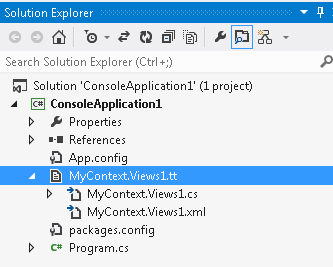
Once it’s done you should see the template and two new files added to your project – one of the files is the embedded xml resource file containing views and the second is the C# files used to load views from the first file:
If you need to uninstall the templates go to Tools→Extensions and Updates… select the template from the list and click the “Uninstall” button.
That’s it for now. Use EF6, enjoy the template and report bugs for both…
MSBuild Zip task without external dependencies
I have seen quite a few build systems in my life. Most of them were very complicated with a ton of crap a lot of tools, dependencies, perl scripts, batch files, nested targets files and God knows what else. Figuring out how something worked (or, more often, why something did not work) was time consuming and very frustrating. One of the reasons for this was people were adding some stuff to the build system but no one has ever removed anything. What was even more annoying was that new dependencies oftentimes added tens of new files just to enable one small thing. Not only the enlistments were huge (how about ~200GB without QA tests?) but also configuring the machine to be able to build all this and run the tests was a sort of black magic. Because of all this I always felt bad about the fact that MSBuild did not have a Zip task available out-of-the-box. I feel that not having this one thing is the first step to having a build system that everyone hates. Yes, I know there wasn’t a Zip library in .NET Framework until now. Yes, I know there are third party Zip libraries out there. Yes, I know about MSBuild Community Tasks. Yes, I know MSBuild can somehow zip files internally as it can create VSIX files which are zip files… oops – this probably was not the best example. Anyways, not having a built-in Zip tasks means that you need to add some dependencies to your build system to be able to build your project. This will lead to a build system that no one wants to touch to not break anything. What about sharing just a single project? Like for instance my Code First view gen templates? Is it OK to tell people – “you can build it on your own – here is the project, but first you need to install this and this and this or it won’t build”? I don’t think it’s OK, but before I could not help much. Fortunately, a Zip library was finally added to .NET Framework 4.5. This allowed me creating my own Zip task. How is this task different from, for instance, the Zip task from the MSBuild community tasks? I created it as an inline task. As a resull it is just a small text file I can import to my projects. It can be checked in to my source control. It does not require any additional components being installed or present on the machine apart from what’s already there. If I need to know what the task is doing I can see the source without Reflector. I can easily change the task without having to recompile half of my build system just to be able to build what I actually want to build. (See the Disclaimer at the bottom of the page). The task looks just like this:
<UsingTask TaskName="Zip" TaskFactory="CodeTaskFactory" AssemblyFile="$(MSBuildToolsPath)\Microsoft.Build.Tasks.v4.0.dll">
<ParameterGroup>
<InputFileNames ParameterType="Microsoft.Build.Framework.ITaskItem[]" Required="true" />
<OutputFileName ParameterType="System.String" Required="true" />
<OverwriteExistingFile ParameterType="System.Boolean" Required="false" />
</ParameterGroup>
<Task>
<Reference Include="System.IO.Compression" />
<Using Namespace="System.IO.Compression" />
<Code Type="Fragment" Language="cs">
<![CDATA[
const int BufferSize = 64 * 1024;
var buffer = new byte[BufferSize];
var fileMode = OverwriteExistingFile ? FileMode.Create : FileMode.CreateNew;
using (var outputFileStream = new FileStream(OutputFileName, fileMode))
{
using (var archive = new ZipArchive(outputFileStream, ZipArchiveMode.Create))
{
foreach (var inputFileName in InputFileNames.Select(f => f.ItemSpec))
{
var archiveEntry = archive.CreateEntry(Path.GetFileName(inputFileName));
using (var fs = new FileStream(inputFileName, FileMode.Open))
{
using (var zipStream = archiveEntry.Open())
{
int bytesRead = -1;
while ((bytesRead = fs.Read(buffer, 0, BufferSize)) > 0)
{
zipStream.Write(buffer, 0, bytesRead);
}
}
}
}
}
}
]]>
</Code>
</Task>
</UsingTask>
Using the task is simple. Put the task to a separate file and import the file to the csproj file. In fact the file is available in my github repo – https://github.com/moozzyk/MSBuild-Tasks. Once you import the file to the project you just invoke the task as you would invoke any other task – for example (this is an actual except from one of my csproj files):
<Import Project="common.tasks" />
<Target Name="BeforeBuild">
<ItemGroup>
<FilesToZip Include="$(ProjectDir)\PayloadUnzipped\*.*" />
</ItemGroup>
<Zip
InputFileNames="@(FilesToZip)"
OutputFileName="$(ProjectDir)$(TargetZipFile)"
OverwriteExistingFile="true" />
</Target>
That’s pretty much it. Works for me and hopefull will work for you.
Disclaimer:
I am not trying to diminish MSBuild Community Tasks or claim that inline tasks will solve all problems of this world. I am trying to say that for small simple tasks inline tasks can be just much more convenient.
Entity Framework Code First View Generation Templates Updated
Everyone fights to be on the first page of the Google search results. But sometimes it’s not cool. One of the cases when it’s not cool is when you introduce a bug that causes a link to your blog to pop up on the first page of the Google search results. Can it be worse? How about the link to your blog being not only on the first page of the Google search results but also *the only* link on the Google search results. Can it be even worse? How about the only result not only in Google but in Bing as well (Hey http://bingiton.com, it’s a tie:
). Sure, it will add some traffic to your blog but it’s a bad kind of traffic. Desperate people looking for a solution to a problem that seemingly can be solved by only one guy on this planet. Now, I feel unique. Unfortunately in a bad sense. Why? Because a bug that was in T4 templates for generating views for CodeFirst apps made all the above a true story. When the templates were used on Visual Studio 2012 the user would get the an exception saying: “The default target Entity Framework version requires the edmx schema version 2.0.0.0 or lower. The specified schema is version 3.0.0.0. To avoid this warning specify the target Entity Framework version explicitly.” (now Google and Bing should show two results 😉 ). I noticed this the first time when I wanted to show the integration of Visual Studio and Visual Studio Gallery to my sister. Then it was reported by a reader as a comment to the first post on view generation and code first I wrote some time ago. Then I saw it more and more often in search engine terms in the stats of this blog. Today I finally found some time to fix the bug and update the templates to the Visual Studio Gallery. I tested the fix on Visual Studio 2012 (C# and VB.NET projects, both targeting .NET Framework 4.5 and .NET Framework 4) and on Visual Studio 2010 (C# and VB.NET project, targeting .NET Framework 4) and did not get the exception anymore. The new templates have version 1.0.1. If you installed version 1.0.0 you probably need to uninstall the old templates (Tools → Extensions and Updates) and install new ones. I have not tried installing new templates without uninstalling old ones – it may or may not work. If you hit any new problems let me know.