MSBuild Zip task without external dependencies

I have seen quite a few build systems in my life. Most of them were very complicated with a ton of crap a lot of tools, dependencies, perl scripts, batch files, nested targets files and God knows what else. Figuring out how something worked (or, more often, why something did not work) was time consuming and very frustrating. One of the reasons for this was people were adding some stuff to the build system but no one has ever removed anything. What was even more annoying was that new dependencies oftentimes added tens of new files just to enable one small thing. Not only the enlistments were huge (how about ~200GB without QA tests?) but also configuring the machine to be able to build all this and run the tests was a sort of black magic. Because of all this I always felt bad about the fact that MSBuild did not have a Zip task available out-of-the-box. I feel that not having this one thing is the first step to having a build system that everyone hates. Yes, I know there wasn’t a Zip library in .NET Framework until now. Yes, I know there are third party Zip libraries out there. Yes, I know about MSBuild Community Tasks. Yes, I know MSBuild can somehow zip files internally as it can create VSIX files which are zip files… oops – this probably was not the best example. Anyways, not having a built-in Zip tasks means that you need to add some dependencies to your build system to be able to build your project. This will lead to a build system that no one wants to touch to not break anything. What about sharing just a single project? Like for instance my Code First view gen templates? Is it OK to tell people – “you can build it on your own – here is the project, but first you need to install this and this and this or it won’t build”? I don’t think it’s OK, but before I could not help much. Fortunately, a Zip library was finally added to .NET Framework 4.5. This allowed me creating my own Zip task. How is this task different from, for instance, the Zip task from the MSBuild community tasks? I created it as an inline task. As a resull it is just a small text file I can import to my projects. It can be checked in to my source control. It does not require any additional components being installed or present on the machine apart from what’s already there. If I need to know what the task is doing I can see the source without Reflector. I can easily change the task without having to recompile half of my build system just to be able to build what I actually want to build. (See the Disclaimer at the bottom of the page). The task looks just like this:

<UsingTask TaskName="Zip" TaskFactory="CodeTaskFactory" AssemblyFile="$(MSBuildToolsPath)\Microsoft.Build.Tasks.v4.0.dll">
    <ParameterGroup>
      <InputFileNames ParameterType="Microsoft.Build.Framework.ITaskItem[]" Required="true" />
      <OutputFileName ParameterType="System.String" Required="true" />
      <OverwriteExistingFile ParameterType="System.Boolean" Required="false" />
	</ParameterGroup>
    <Task>
      <Reference Include="System.IO.Compression" />
      <Using Namespace="System.IO.Compression" />
      <Code Type="Fragment" Language="cs">
      <![CDATA[        
        const int BufferSize = 64 * 1024;

        var buffer = new byte[BufferSize];
        var fileMode = OverwriteExistingFile ? FileMode.Create : FileMode.CreateNew;

        using (var outputFileStream = new FileStream(OutputFileName, fileMode))
        {
          using (var archive = new ZipArchive(outputFileStream, ZipArchiveMode.Create))
          {
            foreach (var inputFileName in InputFileNames.Select(f => f.ItemSpec))
            {
              var archiveEntry = archive.CreateEntry(Path.GetFileName(inputFileName));

              using (var fs = new FileStream(inputFileName, FileMode.Open))
              {
                using (var zipStream = archiveEntry.Open())
                {
                  int bytesRead = -1;
                  while ((bytesRead = fs.Read(buffer, 0, BufferSize)) > 0)
                  {
                    zipStream.Write(buffer, 0, bytesRead);
                  }
                }
              }
            }
          }
        }        
      ]]>
      </Code>
    </Task>
  </UsingTask>

Using the task is simple. Put the task to a separate file and import the file to the csproj file. In fact the file is available in my github repo – https://github.com/moozzyk/MSBuild-Tasks. Once you import the file to the project you just invoke the task as you would invoke any other task – for example (this is an actual except from one of my csproj files):


  <Import Project="common.tasks" />
  
  <Target Name="BeforeBuild">
    <ItemGroup>
      <FilesToZip Include="$(ProjectDir)\PayloadUnzipped\*.*" />
    </ItemGroup>
    <Zip 
      InputFileNames="@(FilesToZip)"
      OutputFileName="$(ProjectDir)$(TargetZipFile)"
      OverwriteExistingFile="true" />
  </Target>

That’s pretty much it. Works for me and hopefull will work for you.

Disclaimer:
I am not trying to diminish MSBuild Community Tasks or claim that inline tasks will solve all problems of this world. I am trying to say that for small simple tasks inline tasks can be just much more convenient.
Entity Framework Code First View Generation Templates Updated

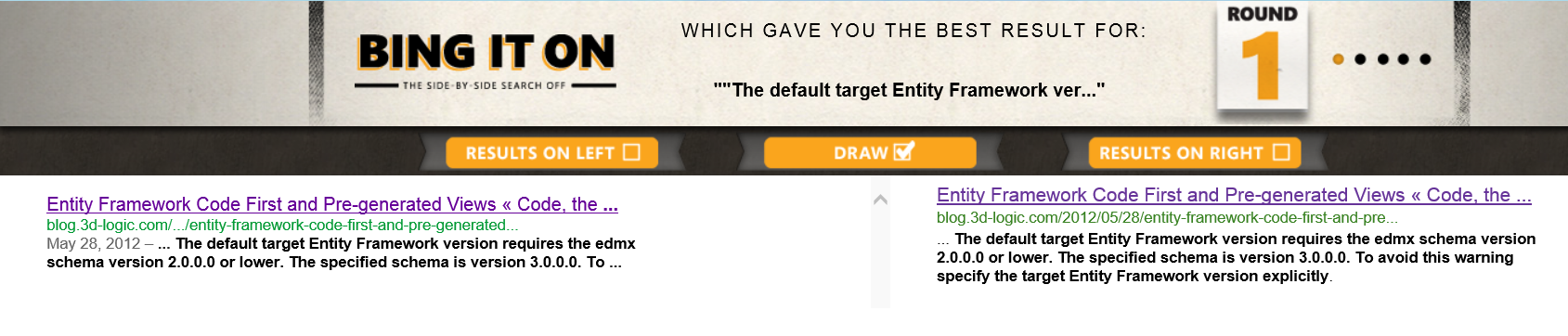
Everyone fights to be on the first page of the Google search results. But sometimes it’s not cool. One of the cases when it’s not cool is when you introduce a bug that causes a link to your blog to pop up on the first page of the Google search results. Can it be worse? How about the link to your blog being not only on the first page of the Google search results but also *the only* link on the Google search results. Can it be even worse? How about the only result not only in Google but in Bing as well (Hey http://bingiton.com, it’s a tie: ). Sure, it will add some traffic to your blog but it’s a bad kind of traffic. Desperate people looking for a solution to a problem that seemingly can be solved by only one guy on this planet. Now, I feel unique. Unfortunately in a bad sense. Why? Because a bug that was in T4 templates for generating views for CodeFirst apps made all the above a true story. When the templates were used on Visual Studio 2012 the user would get the an exception saying: “The default target Entity Framework version requires the edmx schema version 2.0.0.0 or lower. The specified schema is version 3.0.0.0. To avoid this warning specify the target Entity Framework version explicitly.” (now Google and Bing should show two results 😉 ). I noticed this the first time when I wanted to show the integration of Visual Studio and Visual Studio Gallery to my sister. Then it was reported by a reader as a comment to the first post on view generation and code first I wrote some time ago. Then I saw it more and more often in search engine terms in the stats of this blog. Today I finally found some time to fix the bug and update the templates to the Visual Studio Gallery. I tested the fix on Visual Studio 2012 (C# and VB.NET projects, both targeting .NET Framework 4.5 and .NET Framework 4) and on Visual Studio 2010 (C# and VB.NET project, targeting .NET Framework 4) and did not get the exception anymore. The new templates have version 1.0.1. If you installed version 1.0.0 you probably need to uninstall the old templates (Tools → Extensions and Updates) and install new ones. I have not tried installing new templates without uninstalling old ones – it may or may not work. If you hit any new problems let me know.

Using exisiting enum types in Entity Framework 5

When we first showed long awaited support for enum types in the Microsoft Entity Framework June 2011 CTP (which you should not be using) we received a lot of feedback. One of the areas we got lots of comments in were restrictions around mapping O-Space (i.e. CLR) enum types to C-Space (i.e. EDM) enum types. The requirements were that the full name of the C-Space enum type must match the full name of the O-Space enum type and that enum members of both types had to be an exact match. These two rules basically prevented from using already existing enum types. While I think that in most EF scenarios people will use enum types they create rather than re-use existing enum types, there was really no reason to block scenarios where existing enum types were being used. So, we went ahead and relaxed the above rules. Firstly, when trying to match enum types we only compare type name and ignore namespaces. Secondly, members are no longer required to match exactly but any member on the EDM enum type must have a counterpart in the CLR enum type (note that this is unidirectional i.e. members from the CLR enum type don’t have to exist in the EDM enum type). The latter effectively allows an EDM enum type that has no member whatsoever to be mapped to a CLR enum type that has some members (* – disclaimer: see at the bottom). After introducing the changes using existing enum types became easy. When using CodeFirst approach the entity will just have a property of the desired enum type e.g.:

    public class MyEntity
    {
        public int Id { get; set; }
        public System.DayOfWeek Day { get; set; }
    }

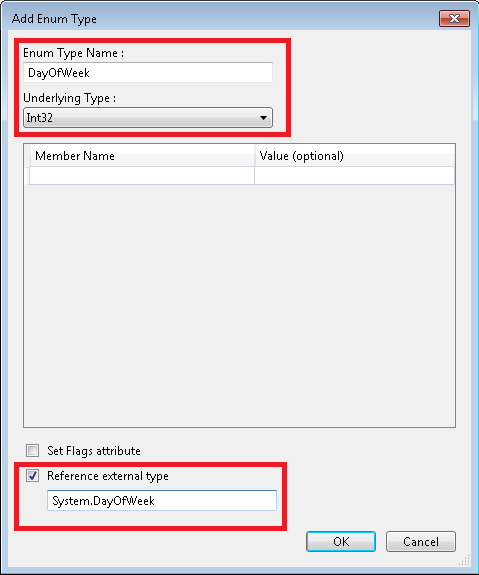
That’s it – it should “just work”. But what about ModelFirst or DatabaseFirst? When you look at the “Add Enum Type” dialog:

Add Enum Type Dialog

you will see the “Reference External Type” checkbox at the bottom. If you want to use an existing enum type just check this checkbox and enter the fully qualified name of the enum type in the box below the checkbox. Remember that the name of the enum type being created (“Enum Type Name” box) must match the name of the CLR enum type. Underlying types must also match. If you now close the dialog and look at the EDMX (you need to open the .edmx file with Xml Editor) you will see the following enum type definition (I copied the namespace definition to make the xml fragment valid):

<EnumType Name="DayOfWeek" cg:ExternalTypeName="System.DayOfWeek" xmlns:cg="http://schemas.microsoft.com/ado/2006/04/codegeneration" />

The interesting fact about the definition above is that the type has no members (we don’t need them). But the {http://schemas.microsoft.com/ado/2006/04/codegeneration}ExternalTypeName attribute is even more interesting – it contains the name of the CLR type we entered when adding a new enum type to the model. As the namespace uri indicates this attribute is used by code generation. When the code is generated whenever the enum type is referenced the templates will use the value from the {http://schemas.microsoft.com/ado/2006/04/codegeneration}ExternalTypeName attribute rather than the value from the Name attribute. Here is the result:


//------------------------------------------------------------------------------
// <auto-generated>
//    This code was generated from a template.
//
//    Manual changes to this file may cause unexpected behavior in your application.
//    Manual changes to this file will be overwritten if the code is regenerated.
// </auto-generated>
//------------------------------------------------------------------------------

namespace ConsoleApplication1
{
    using System;
    using System.Collections.Generic;
    
    public partial class MyEntity
    {
        public int Id { get; set; }
        public System.DayOfWeek Day { get; set; }
    }
}

To make it clear – the {http://schemas.microsoft.com/ado/2006/04/codegeneration}ExternalTypeName attribute is not used at runtime. It exists purely to support code generation. Another caveat is that the attribute works only in DbContext based templates – which are the default code generators in EF5 and Visual Studio 2012.
Using existing enum types in Entity Framework 5 should be now easy!

* – as reported by Paweł Madurski on stackoverflow there is a bug where EF still checks for enum members when using Contains with an array of enum values (or to be more precise where a query requires creating the DbConstantExpression instance an enum value). This is tracked on Entity Framework codeplex page: http://entityframework.codeplex.com/workitem/623

Yes, you can! (create mutifile zip files in .NET Framework (finally))

I recently have been working on moving some projects from an old legacy build system to a new shiny build system. After understanding intricacies of the old build system I was able to isolate and remove 99% stuff we did not really need and comment out the remaining 1% we needed but could not make it work easily. I felt proud of myself because I was even able to build something in the new build system (OK, maybe the stuff we did not need was actually 98.9%?). So, I started uncommenting things we needed but were not as straightforward to fix. One of the first things I came across was the need of zipping files after building. I thought I would just use the MSBuild Zip task and call it done. Unfortunately it turned out that out of the box MSBuild does not have a Zip task. I could find it in MSBuild community tasks but for certain reasons we could not take a dependency on these. We also did not have a zip-like command line tool we could take a dependency on. One of the last sunny days around Seattle this year started looking gloomy to me. I asked folks on our team and they had a few ideas like using PowerShell (we don’t really need it anywhere else so again I wanted to avoid it), leveraging a third party library we could use to create a task or finally using GZipStream. I liked the idea of using GZipStream – I could create and inline MSBuild task which would be clean and simple. However gzip only supports compressing one file and I needed to zip several files so, I could not use it. I spent more time looking for something suitable and thought I found it – ZipPackage!. Again, my hopes were quickly dashed. This guy needs a metadata file containing content types of the included files. This file is then added to the archive. But I needed just a POZF™ (Plain Old Zip File) without any additional crap inside! Afternoon was getting really dark. I started looking at the option of using a third party library. It would add complexity to the build system. I would have to build tools before building projects. Suddenly, I had this feeling that instead of having a lightweight, easy and fast build we will have a new version of what we had before. Each time I wanted to start working on this my hands refused and decided to open a browser and check the news or something along these lines. So, I gave one more shot at finding a better solution but I could only find that there is an MSBuild Zip task in the community tasks and that the GZipStream basically can compress only one file and that the ZipPackage requires some metadata. I was loosing hope when suddenly on Xth page of results (where X > 5) I found this – the ZipArchive class. The ZipArchive is a new class in the .NET Framework 4.5 that allows creating zip files containing not only multiple files but also the whole folder hierarchy! In just one second all the clouds were gone. If there had not been for pierogi I would have probably stayed playing with this class until my MSBuild problem was resolved. On the other hand I don’t like when pierogi are too hot so I stayed a few more minutes just to see if it was easy to create a zip file. Here is what I came up with (I checked only briefly but could not find an example how to create a new archive on msdn):

public static void Main()
{
    Zip(
        new string[] 
        { 
            @"C:\Temp\file1.txt", 
            @"C:\temp\file2.txt", 
            @"C:\Source\ConsoleApplication1\ConsoleApplication1\Program.cs" 
        },
        @"c:\temp\out.zip");
}

static void Zip(string[] inputFileNames, string outputFileName)
{
    using (var outputFileStream = new FileStream(outputFileName, FileMode.Create))
    {
        using (var archive = new ZipArchive(outputFileStream, ZipArchiveMode.Create))
        {
            foreach (var inputFile in inputFileNames)
            {
                AddFileToArchive(archive, inputFile);
            }
        }
    }
}

static void AddFileToArchive(ZipArchive archive, string inputFile)
{
    const int BufferSize = 64 * 1024;

    // relies on inputFile being an absolute path 
    // - Substring(3) removes :\ from the path
    var archiveEntry = archive.CreateEntry(inputFile.Substring(3));

    using (var fs = new FileStream(inputFile, FileMode.Open))
    {
        using (var zipStream = archiveEntry.Open())
        {
            byte[] buffer = new byte[BufferSize];
            int bytesRead = -1;
            while ((bytesRead = fs.Read(buffer, 0, BufferSize)) &gt; 0)
            {
                zipStream.Write(buffer, 0, bytesRead);
            }
        }
    }
}

I can open the archive I created in the Windows Explorer, browse and open files. No additional metadata files are added to the archive – it’s a POZF™. So – yes, you now can create a multifile zip archives in .NET Framework without using third party libraries. And now creating an inline MSBuild Zip task that fits my new build system is easy. This makes me happy!

Pawel Kadluczka

Digital Clock on Arduino (Uno) with Nokia LCD Display

When I heard about Arduino a couple years ago (yes, I was a bit late to the party) I immediately fell in love with it. The main reason was that it allowed me to try things that otherwise would require a lot of time and effort from a total electronics noob like me. With Arduino, a breadboard, a few LEDs and a couple of cables I was ready to write my very first program – controlling the LED with Arduino. It was fun! But I wanted to do something more interesting. I figured that while flashing a LED is fun displaying something on a screen must be even more fun. Soon I found that it was possible to buy a cheap Nokia 5110 LCD displays on ebay. I had some doubts whether I would be able to make it work but figured out that even if I wouldn’t I could always use it as a key chain or a similar geeky gadget. Indeed, when the display arrived I did have some problems to make it work. First, I was not sure how to connect the display to Arduino. Even though I found a few websites that showed how to do that I had hard time to make it work. I also tried a couple of sample programs that in theory should display something on the display but in practice they did not. Eventually, I found that one of the cables were connected incorrectly and the sequence to initialize the display did not work (at least on my display). Seeing something on the screen was a huge step forward and I finally could think about using the display for my own purpose. I decided that I could do a digital clock as it seemed a reasonably sized project which would still require understanding how the display really works. First I wanted to “design” fonts for the clock. For this I just used graph paper and this reminded me designing sprites for my C-64 in the late eighties. After designing all digits I had to understand how to encode these so that they could be drawn easily on the screen. I found the datasheet for the PCD8544 which is a controller for the display. This was the first time in my life I had to read a datasheet for an electronic component but I was able to understand what the most important things and the datasheet turned out to be an interesting read. Soon, I found what I wanted – the display has 6 rows and 84 columns. Each column in a row has 8 pixels. To draw something on a screen first you need to set a pointer (row and column) and then write a byte (8 bits) to draw the column. When you draw a column the pointer automatically advances to the next column – this is handy since you don’t really have to set the pointer all the time if you draw something like a bitmap. The mechanics of drawing on the screen surprised me. Firstly, I found it kind of similar to advanced graphics modes on 8-bit computers. Secondly, it was interesting to see that the programmer’s convenience totally lost with the low level design of the controller (or may be I am just spoiled by higher level APIs which allow me just to pass x and y to draw a point). After figuring out how drawing looks like encoding my digits was relatively simple. Now that I was able to draw digits on the screen it was the time to implement the clock. Initially I wanted to use the loop function but I quickly realized that it would not really work for a clock. I did not know how long drawing would take and therefore the clock would not work correctly. I could calculate how much time drawing took and then cut the wait time accordingly but it didn’t feel like the right solution. Obviously, there was one more (and I believe the only correct for this kind of problem) solution – interrupts. The only problem was to set everything up correctly. I spent some time reading Arduino datasheet but things did not really want to work. Fortunately I found this page which helped tremendously. After setting up interrupts things went smoothly and soon I had my digital clock up and running. I actually ended up using both the loop function and the interrupt. The interrupt just increases the timer while all the drawing takes place in the loop function. This way I don’t have to worry that drawing takes too much time and when a new interrupt happens the previous one is still being handled. That’s pretty much it. Here is a short video showing the clock in action:

If you want to try my project here is how I connected the Nokia 5110 display to Arduino:

Arduino Uno               Nokia 5110 Display
3.3V   ------------------ 1-VCC
PIN #7 ------------------ 3-SCE
PIN #6 ------------------ 4-RST
PIN #5 ------------------ 5-D/C
PIN #4 ------------------ 6-DNK(MOSI) (SDIN)
PIN #3 ------------------ 7-SCLK

I also posted the sketch on my github.

One more thing I always wanted to do but never really have had time to do was to add some buttons to enable setting the clock – at the moment the clock always starts at 00:00. Maybe one day I will come back to this project again (like I did today just to publish it) and will add the buttons…

Pawel Kadluczka